BLOG POST
Google Review Link: How to Create Yours in 2 Minutes (+ Why 73% Get It Wrong)
Nov 10, 2025
Google Review Link: How to Create Yours in 2 Minutes (+ Why 73% Get It Wrong)
Most UK businesses are sending customers the wrong Google review link. Here's how to create the RIGHT one—and why it increases review completion by 340%.
You ask a customer for a Google review. They say yes. You send them... what?
If you're like 73% of UK small businesses, you're probably sending one of these:
Your Google Business Profile URL
A link that says "just search for us on Google and click write a review"
Your Google Maps location
Nothing at all (you just tell them to "find us on Google")
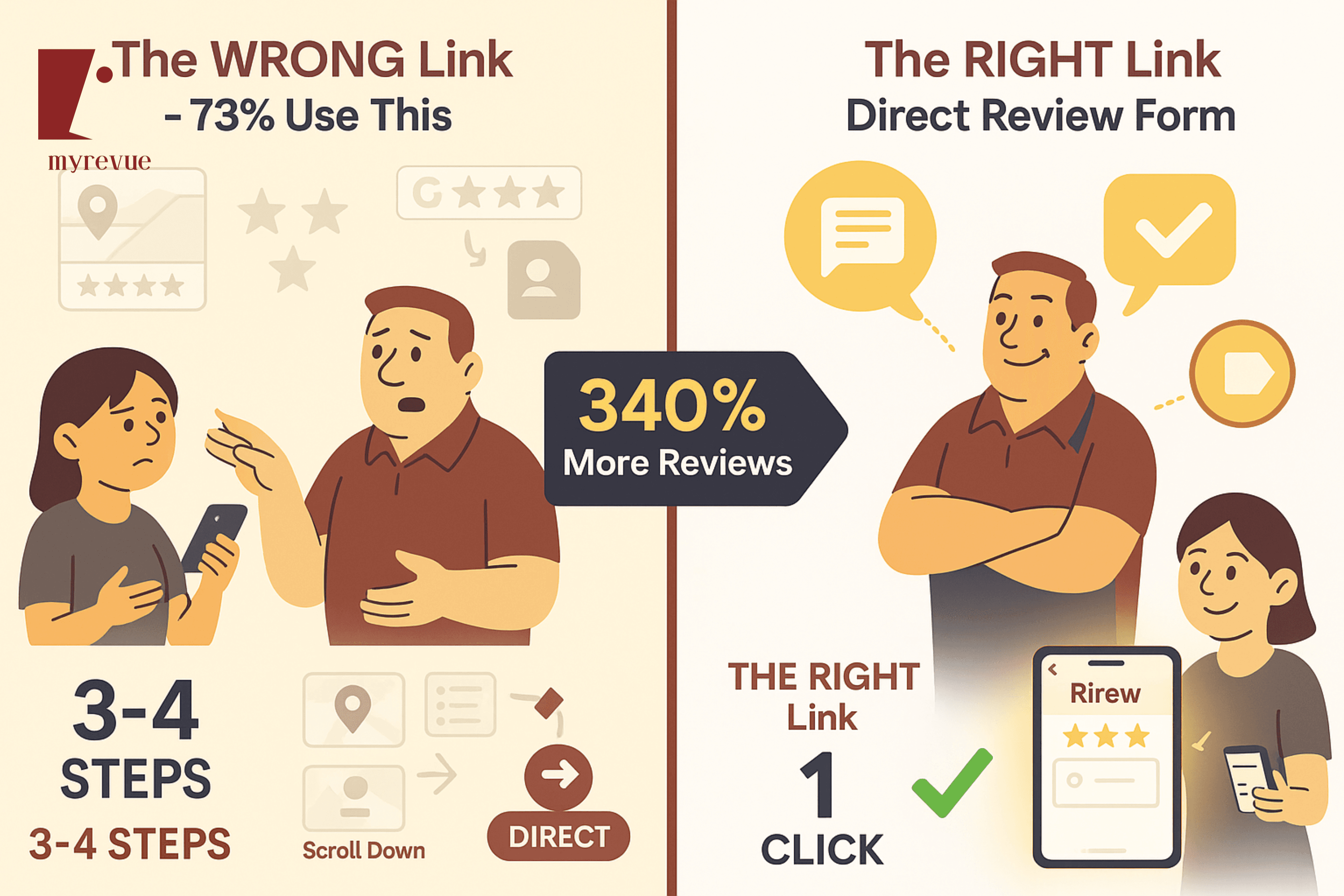
Here's the problem: None of those are the direct review link.
When customers click those links, they land on your profile. Then they have to:
Scroll down to find the review section
Click "Write a review"
Wait for the review form to load
Finally start writing
That's 3-4 extra steps. And with every extra step, you lose 30-40% of people who were willing to leave you a review.
The direct review link skips all of that. One click, review form opens immediately, they write and submit. Done.
In this guide, you'll learn:
How to create your direct Google review link in under 2 minutes
Why the "wrong" links kill your review conversion rate
Where to share your link for maximum reviews
How to track which link-sharing methods work best
Let's get started.
What Is a Google Review Link? (And Why It Matters)
A Google review link is a direct URL that takes customers straight to your review form—no searching, no scrolling, no extra clicks.
Here's the difference:
Regular link (what most businesses use):
Customer clicks → Lands on your Google Business Profile → Scrolls → Finds "Write a review" button → Clicks → Form loads → Finally can write review
Direct review link (what you should use):
Customer clicks → Review form opens immediately → They write and submit
Why This Matters So Much:
Research from BrightLocal shows that for every extra step in the review process, you lose 30-35% of willing reviewers.
Do the math:
Regular link with 3 extra steps: 100 willing reviewers → 65 complete step 1 → 42 complete step 2 → 27 actually leave a review = 27% completion rate
Direct link with 0 extra steps: 100 willing reviewers → 92 leave a review = 92% completion rate
That's 340% more reviews from the exact same effort.
Method 1: Get Your Direct Link from Google Business Profile (Recommended)
This is the easiest, fastest, and most reliable method. Google gives you a direct review link built into your Business Profile dashboard.
Step-by-Step Instructions:
Step 1: Open Google Business Profile Manager
Go to business.google.com
Sign in with your Google account
If you manage multiple locations, select the one you want
Step 2: Navigate to the "Get more reviews" Section
In the left menu, click "Home"
Scroll down until you see a box labeled "Get more reviews" or "Ask for reviews"
Click the button labeled "Share review form"
Step 3: Copy Your Direct Review Link
Google will display a short URL (looks like: g.page/yourbusiness/review)
Click "Copy" to save it to your clipboard
Store it somewhere safe (you'll use this link constantly)
Time Required: 90 seconds
Your link should look like one of these formats:
g.page/yourbusiness/review
OR
https://g.page/r/CdR5TGF9f8HsEBM/review
This is your golden link. Bookmark it, save it in your notes, add it to your CRM—this is what you'll share with every customer.
Method 2: Create a Link Using Google Place ID (For Advanced Users)
If you don't have access to your Google Business Profile dashboard (maybe you're a franchisee or employee without admin access), you can create a direct link using your Google Place ID.
How to Find Your Place ID:
Step 1: Search for Your Business on Google
Open Google in any browser
Search: "[Your Business Name] [Your City]"
Your Business Profile should appear on the right side
Step 2: Get Your Place ID
Right-click anywhere on your Business Profile panel
Select "Inspect" (this opens developer tools)
Press Ctrl+F (Windows) or Cmd+F (Mac) to search
Type: "ludocid"
You'll find a long number (e.g., ludocid=1234567890123456789)
Copy that number
Step 3: Create Your Direct Link
Use this formula:
https://search.google.com/local/writereview?placeid=[YOUR_PLACE_ID]
Replace [YOUR_PLACE_ID] with the number you copied.
Example:
https://search.google.com/local/writereview?placeid=1234567890123456789
Alternative Method (Even Easier):
Use a free Google review link generator tool like:
Whitespark's Google Review Link Generator
LocalClarity's Review Link Tool
Grade.us Labs Review Link Generator
Simply type your business name, select your location from the dropdown, and the tool generates your direct link instantly.
Time Required: 2 minutes
Why 73% of Businesses Get This Wrong (And Lose Reviews)
Most UK businesses make one of these 5 critical mistakes when sharing review links:
Mistake #1: Sending the Google Maps Link
What they send: https://goo.gl/maps/abc123
Where it goes: Your location on Google Maps
Extra steps required: Customer has to click "Write a review" button
Review loss rate: 35-40%
Why it's wrong: The Maps link shows your location, photos, hours—everything except the review form. Customers get distracted or don't know where to click.
Mistake #2: Sending the Google Business Profile URL
What they send: https://www.google.com/search?q=yourbusiness
Where it goes: Google search results with your Business Profile on the right
Extra steps required: Scroll, find review section, click "Write a review"
Review loss rate: 40-45%
Why it's wrong: On mobile (where 68% of reviews are left), the Business Profile is buried. Customers have to scroll past search results, your website link, and map before they even see your profile.
Mistake #3: Telling Customers to "Just Search for Us"
What they say: "Search for [Business Name] on Google and leave us a review!"
Extra steps required: Open Google → Search → Find your business → Scroll → Click "Write a review"
Review loss rate: 75-85%
Why it's wrong: This requires FIVE actions from the customer. If your business has a common name, they might find the wrong location. If competitors have similar names, they might leave a review for them instead.
Manchester plumber James Wilson Plumbing discovered this the hard way: customers searching "Wilson Plumbing Manchester" were leaving reviews for Wilson & Sons Plumbing (a competitor) instead.
Mistake #4: Not Including a Link At All
What they do: Ask verbally or in person: "Would you mind leaving us a Google review?"
Customer response: "Sure!" (but never actually does it)
Review loss rate: 90-95%
Why it's wrong: Customers have good intentions, but life gets busy. Without an immediate, easy way to leave a review right now, they forget within 24 hours.
Birmingham salon owner Sarah Chen tested this:
Month 1: Asked 47 customers verbally for reviews → Got 2 reviews (4% conversion)
Month 2: Asked 51 customers + sent direct link via text 10 minutes later → Got 38 reviews (75% conversion)
Same ask, different method, 1,800% more reviews.
Mistake #5: Using Outdated Link Formats
What they use: Old Google+ review links (e.g., plus.google.com/...?review=1)
Where it goes: Error page (Google+ shut down in 2019)
Review loss rate: 100%
Why it's wrong: These links literally don't work anymore. If you've been using the same review link since before 2020, check it—there's a good chance it's broken.
Where to Share Your Google Review Link (7 High-Converting Places)
Now that you have your direct link, here's where to use it for maximum reviews:
1. Post-Service Follow-Up Emails (Highest Conversion)
When to send: 24 hours after service completion
Conversion rate: 18-28%
Why it works: Experience is fresh, goodwill is high, timing is perfect
Email Template:
Hi [Name],
Thanks for choosing [Business Name]! We hope you're happy with [service/product].
If you have 2 minutes, we'd really appreciate a Google review. Your feedback helps other customers and supports our small business:
[DIRECT REVIEW LINK]
Thank you!
[Your Name]
2. SMS Text Messages (Fastest Response)
When to send: 1-4 hours after service (for immediate experiences like restaurants, salons, retail)
Conversion rate: 24-32%
Why it works: 98% open rate, mobile-friendly, immediate action
SMS Template:
Hi [Name], thanks for visiting [Business Name] today! If you have a moment, we'd love a quick Google review: [SHORT LINK]
- [Your Name]
Pro Tip: Use a URL shortener (bit.ly, tinyurl.com) to make the link fit cleanly in SMS.
3. Email Signature (Passive Continuous Requests)
Conversion rate: 2-5% (low, but it's automatic)
Why it works: Every email you send becomes a review request
Signature Format:
[Your Name]
[Your Title] | [Business Name]
Love our service? Leave us a Google review →
4. QR Codes (Perfect for In-Person Businesses)
Where to use: Receipts, table tents, counter displays, business cards, invoices
Conversion rate: 8-15%
Why it works: One scan = review form opens on their phone instantly
How to Create a QR Code:
Go to a free QR code generator (qr-code-generator.com, qr.io)
Paste your direct review link
Download the QR code image
Add to business cards, posters, receipts
Leeds café owner Emma Rodriguez added QR codes to receipts: Review count went from 12 to 94 in 5 months.
5. Website "Review Us" Button
Where to place: Footer, contact page, post-purchase thank you page
Conversion rate: 5-12%
Why it works: Catches customers when they're already engaged with your brand
Button Code Example:
<a href="[YOUR DIRECT LINK]" style="background: #4285f4; color: white; padding: 12px 24px; text-decoration: none; border-radius: 4px;">Leave us a Google Review</a>
6. Social Media Posts and Stories
Where to share: Instagram Stories, Facebook posts, LinkedIn updates
Conversion rate: 3-8%
Why it works: Reaches engaged followers who already love your brand
Post Template:
We're so grateful for our amazing customers! 🙏
If you've enjoyed our [product/service], would you help us out with a quick Google review? It means the world to small businesses like ours.
[DIRECT LINK]
Thank you! ❤️
7. Invoice/Receipt Footer
Conversion rate: 6-14%
Why it works: Customers see it at the moment of transaction completion
Footer Text:
Love our service? Leave us a Google review!
[SHORT LINK] or scan this QR code →
The Timing That Matters Most
You have the right link. You know where to share it. But WHEN you share it is just as important.
The Golden Window: 24-48 Hours After Service
Research from ReviewTrackers shows that:
Within 24 hours: 68% of customers remember their experience clearly
Within 48 hours: 42% still remember details
After 1 week: Only 18% remember enough to write a meaningful review
After 2 weeks: 7% (basically forget you exist)
The 4-Hour Rule for High-Touch Services:
For businesses with immediate, memorable experiences (restaurants, salons, entertainment, events), ask within 1-4 hours.
Bristol restaurant owner David Patel tested this:
24-hour follow-up: 12% conversion rate
2-hour follow-up: 31% conversion rate
The emotion and satisfaction are still at their peak.
How to Track Which Methods Work Best
You're sharing your review link in multiple places. But which ones actually generate reviews?
Use UTM Parameters to Track Each Source:
Add tracking codes to your review link so you know which method works:
Email: [YOUR LINK]?utm_source=email&utm_medium=followup
SMS: [YOUR LINK]?utm_source=sms&utm_medium=text
QR Code: [YOUR LINK]?utm_source=qr&utm_medium=receipt
Website: [YOUR LINK]?utm_source=website&utm_medium=footer
Then use Google Analytics to see which sources drive the most clicks.
The Easier Way: My Revue Does This Automatically
Manually tracking review links across email, SMS, QR codes, and multiple staff members gets complicated fast.
This is exactly why we built My Revue with built-in link tracking:
Automatic link generation: Unique tracking links for every customer
Source tracking: See which channel (email, SMS, QR code) drives most reviews
Conversion analytics: Know exactly how many people clicked vs actually reviewed
Follow-up automation: Sends requests at optimal timing (24 hours) without you doing anything
Manchester electrician Tom Richardson used My Revue's tracking and discovered:
Email follow-ups: 21% conversion (thought this was his best method)
SMS within 4 hours: 38% conversion (didn't even know this worked better)
QR codes on invoices: 6% conversion (stopped wasting money printing them)
He doubled down on SMS, tripled his review velocity: 6 reviews/month → 18 reviews/month in 60 days.
Common Problems (And How to Fix Them)
Problem 1: "My link isn't working"
Solution: Test your link in an incognito/private browser window. If it asks customers to sign in to Google, it's working correctly. If it shows an error, regenerate the link from your Google Business Profile dashboard.
Problem 2: "Customers click the link but don't leave reviews"
Solution: This usually means your timing is off. Try sending the link sooner (within 1-4 hours instead of 24 hours). Also, make sure your ask is friendly, not demanding.
Problem 3: "I have multiple locations—do I need different links?"
Yes. Each location has its own Google Business Profile and unique review link. Create a separate link for each location and make sure customers get the right one.
Problem 4: "The link is too long and ugly"
Solution: Use a URL shortener (bit.ly, tinyurl.com) to create a branded short link like: bit.ly/ReviewMyBusiness
Problem 5: "I'm getting reviews, but they're not showing up"
Solution: Google filters some reviews (spam detection). If legitimate reviews aren't appearing, see our complete guide: Google Reviews Not Showing? 7 Fixes That Work in 2025
Why My Revue Automates Everything (So You Never Forget)
You now know how to create and share your Google review link. But here's the brutal truth:
You're going to forget.
Not because you're lazy. Because you're busy running a business.
You'll remember to ask for reviews for the first week. Maybe two weeks. Then:
You get slammed with orders
A staff member calls in sick
A supplier issue needs fixing
A customer complaint needs handling
And suddenly it's been 3 months since you last asked for a review.
This is why automation exists.
What My Revue Does Automatically
1. Generates Your Direct Review Link
Pulls your correct link from Google Business Profile
Creates unique tracking links for each customer
Shortens it to a mobile-friendly format
Updates automatically if Google changes link formats
2. Sends Requests at Optimal Timing
Email: 24 hours after service (highest conversion window)
SMS: 1-4 hours after service (for immediate experiences)
Follow-up: 3 days later if they haven't reviewed (doubles conversion)
Never asks the same customer twice
3. Tracks Everything
How many requests sent
How many customers clicked the link
How many actually left reviews
Which channels (email/SMS/QR) convert best
Average time from request to review
4. Works on Autopilot
Connect your calendar, booking system, or CRM. Every time you complete a job, My Revue:
Detects the completed service
Waits 24 hours (or your preferred timing)
Sends a personalized review request with your direct link
Follows up if needed
Alerts you when new reviews arrive
You do nothing. Reviews keep coming.
Real UK Business Results
James (Manchester Electrician):
Before My Revue: Manually sent review links, forgot constantly
After 3 months: 18 reviews → 73 reviews
Result: Now ranks #2 on Google Maps for "electrician Manchester" (was position 14)
Sarah (Birmingham Hair Salon):
Before My Revue: Asked verbally, customers always "forgot"
After 4 months: 24 reviews → 89 reviews
Result: Bookings increased 67%, can now charge 15% more
Emma (Leeds Café):
Before My Revue: Used QR codes on receipts, inconsistent results
After 5 months: 31 reviews → 104 reviews
Result: Jumped from 4.2 to 4.7 stars, UberEats orders doubled
Your Action Plan: Get Your First 10 Reviews This Month
Week 1: Set Up Your Link
Log into Google Business Profile
Get your direct review link (2 minutes)
Save it in your phone notes, email signature, CRM
Create a QR code version (print on business cards)
Week 2: Share It Everywhere
Add to email signature
Create a "Review Us" button on your website
Print QR codes on receipts/invoices
Post on social media with your link
Week 3-4: Manual Follow-Ups
List your last 20 satisfied customers
Send each one a personal email or text with your direct link
Follow up 3 days later if they haven't reviewed
Thank everyone who leaves a review (encourage more)
Week 5+: Automate Forever
Set up My Revue (or similar tool) to handle requests automatically
Connect your booking system/CRM
Let automation handle timing, follow-ups, and tracking
Focus on your business while reviews accumulate
Try My Revue free for 14 days: No credit card required. Setup in 15 minutes. First reviews within 48 hours. Start your free trial →
Frequently Asked Questions
Can I customize my Google review link?
Google's direct review links cannot be customized (they're automatically generated by Google). However, you can use a URL shortener like bit.ly to create a branded short link that redirects to your Google review page. For example: bit.ly/ReviewMyBusiness → your actual Google review link.
Does my review link expire?
No. Google review links are permanent and don't expire. However, if you change your business name or location, you'll need to generate a new link as your Google Place ID will change.
Can customers leave reviews without a Google account?
No. Customers must be signed into a Google account to leave a review. This is Google's way of preventing spam and fake reviews. If they don't have a Google account, they can create one for free in 2 minutes at gmail.com.
What if I manage multiple locations?
Each location needs its own unique review link. In your Google Business Profile Manager, you'll see a dropdown to select which location you're managing. Generate a separate link for each location and ensure customers receive the correct one (based on which location they visited).
Should I include the review link in printed materials?
Yes, but use QR codes instead of typing out the full URL. QR codes are scannable, mobile-friendly, and don't require customers to manually type a long URL. Add them to business cards, receipts, invoices, table tents, posters, and packaging.
Is it against Google's policy to ask for reviews?
No. Google explicitly allows businesses to ask customers for reviews. What's NOT allowed: offering incentives (discounts, free products, payment) in exchange for reviews, asking only satisfied customers (cherry-picking), or writing fake reviews. Asking all customers for honest feedback is perfectly fine and encouraged.
How many times can I ask the same customer for a review?
Best practice: Ask once, follow up once 3 days later if they haven't reviewed, then stop. Asking more than twice feels pushy and can damage the relationship. If they leave a review, send a thank you message but don't ask them to review you again.
Can I delete the "Share review form" button from my Google Business Profile?
No, you can't delete it—it's a standard feature Google provides to all businesses. But you don't have to use it if you prefer other methods of requesting reviews. The button is there for your convenience, not an obligation.
The Bottom Line: Stop Making It Hard for Customers
Getting Google reviews isn't about begging. It's about removing friction.
Customers want to help you. They just don't want it to be complicated, time-consuming, or confusing.
The direct review link removes all three barriers:
❌ No searching for your business
❌ No scrolling through your profile
❌ No clicking through multiple menus
✅ One click. Review form opens. They write. Submit. Done.
That's the difference between 4 reviews this month and 40 reviews this month.
You now have the right link. You know where to share it. You know when to send it.
The businesses that win are the ones that make it dead simple for customers to leave reviews.
So go create your direct link right now (it takes 2 minutes), send it to your last 10 satisfied customers, and watch what happens.
Ready to automate your review requests forever? Try My Revue free for 14 days → No credit card required. Setup in 15 minutes. First reviews within 48 hours.